


How to automate radio button in selenium webdriver
Different operations for the radio button using selenium web driver.
The operations are:
- To select the radio button
- Which one is selected
Navigate to www.qafeast.com/demo, click the radio button tab.
Press F12 in the keyboard and inspect the radio button.
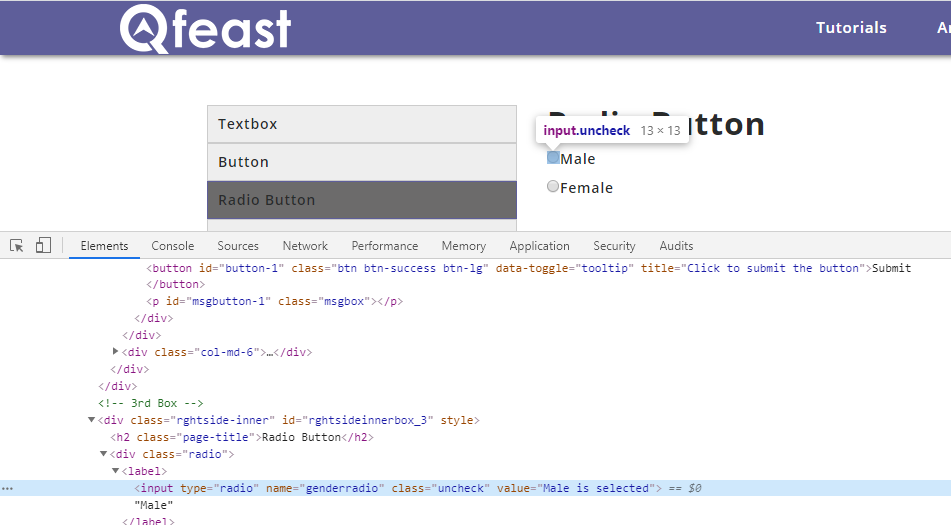
Table of Contents
Select the radio button:
Selenium webdriver doesn’t provide a special method to select the radio button, we can use click() method to select the radio button.
Python:-
driver.find_element_by_xpath(“//label[text()=’Male’]”).click()
C#:
driver.FindElement(By.XPath(“//label[text()=’Male’]”)).Click();
Java:
driver.findElement(By.xpath(“//label[text()=’Male’]”)).click();
To check which one is selected:
Python:
result = driver.find_element_by_xpath(“//input[@value=’Male is selected’]”).is_selected()
if result:
print(“Male is selected”)
else:
print(“Male is not selected”)
Output: Boolean value , False
or
Using get_attribute value we can determine using checked property
result = driver.find_element_by_xpath(“//input[@value=’Male is selected’]”).get_attribute(“checked”)
C#
Boolean rdBtn = driver.FindElement(By.XPath(“//input[@value=’Male is selected’]”)).Selected;
if (rdBtn)
{
Console.WriteLine(“Male is selected”);
}
else
{
Console.WriteLine(“Male is not selected”);
}
Using getattribute value we can determine using checked property
string rdBt = driver.FindElement(By.XPath(“//input[@value=’Male is selected’]”)).GetAttribute(“checked”);
Java
boolean rdBtn = driver.findElement(By.xpath(“//input[@value=’Male is selected’]”)).isSelected();
if (rdBtn)
{
System.out.println(“Male is selected”);
}
else
{
System.out.println(“Male is not selected”);
}
Using getattribute value we can determine using checked property
String rdBt = driver.findElement(By.xpath(“//input[@value=’Male is selected’]”)).getAttribute(“checked”);
Read more here: Source link